
SnapApp Workflow
on 02-02-2026 12:00 AM by SnapApp by BlueVector AI
1661

A workflow in SnapApp outlines the sequence of processes, from input to final output, detailing how data flows and tasks are executed within the system. This includes automated triggers for database events, API calls, or time-based schedules.
Table of Contents
Create a workflow
- Navigate to Settings from the User menu of the top bar.
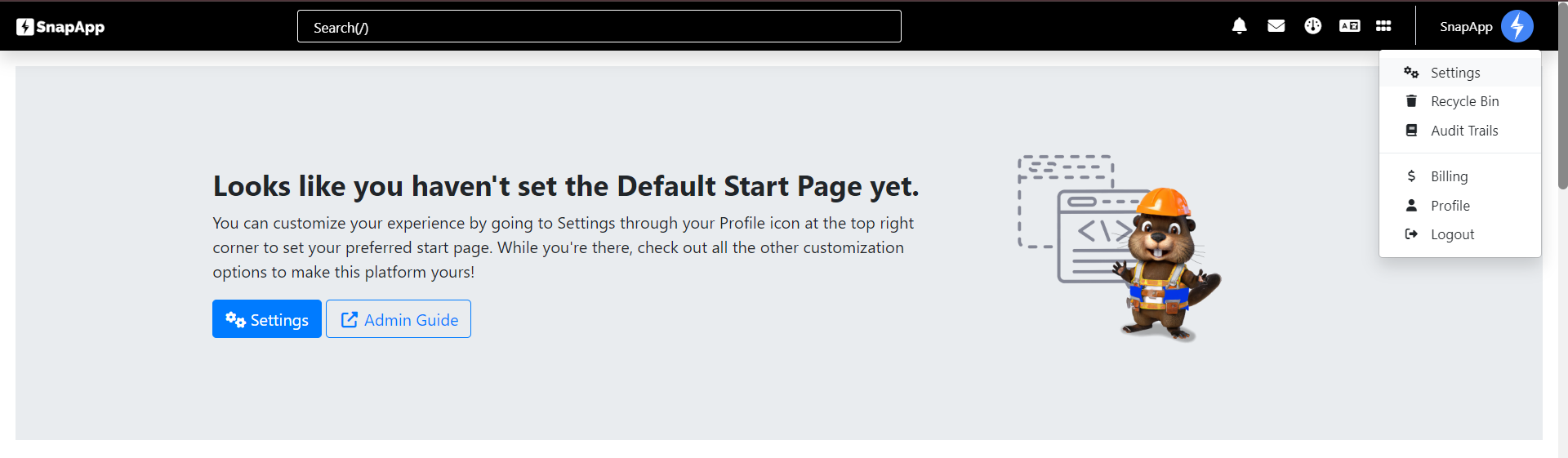
- Tap on Automation on the left navigation bar → Workflows.
- Tap on +Add New in the top header.

- Configure the workflow settings and fill out the required fields.
| Field | Description |
|---|---|
| Type | Defines the trigger type: API, Insert, Update, Upsert, or Time Based. |
| Name | A unique identifier for the workflow. |
| Object | Select the existing object that triggers this workflow (e.g., Accounts, Tasks). |
| Description | A brief explanation of the workflow’s purpose. |
| Status | Toggle to Active to enable the workflow. |
Workflow Actions
A workflow action is a specific operation executed when the workflow conditions are met. These actions are the building blocks of your automation logic.
.png)
Available actions include:
- Alert
- Clone Record
- Custom Function
- Data Migration
- Delete Record
- Document Generation
- Expression
- Field Update
- Integration
- PubSub Inbound/Outbound
- Send Email
- SMS
Workflow Condition
A workflow condition acts as a filter, determining if the actions should execute based on specific record criteria.
.png)
In SnapApp, the workflow will only execute its child actions when the record data satisfies the defined conditions (e.g., Status == "Completed").
Workflow Steps
Workflow steps define the sequence and logic flow of your automation. Using the Diagram View, you can visualize and manage components like:
- Action: Executes one of the predefined action types.
- If (Condition): Branches the logic flow based on a true/false evaluation.
- ForEach: Iterates through a list of records.
- Timer: Pauses the workflow for a specified duration.
- Query: Retrieves additional data from other objects.
Learn more about Diagram View Components.
- Click +Add New within the Workflow Builder to add a step.
- Select the Component Type.
- Configure the Diagram Position for visual organization.
- Define the Sequence to control the order of execution.

Managing Workflows
- View Configuration: Use the button in the list view to enter the Diagram Builder.
- Edit Details: Use the button to update the name, status, or description.
- Delete: Use the button to remove a workflow permanently.
Thank you for following these steps to configure your SnapApp components effectively. If you have any questions or need further assistance, please don’t hesitate to reach out to our support team. We’re here to help you make the most out of your SnapApp experience.
For support, email us at snapapp@bluevector.ai


