
Workflow Actions - Send Email
on 01-27-2026 12:00 AM by SnapApp by BlueVector AI
780
The Send Email workflow action facilitates automated email notifications, providing a reliable method to deliver alerts, updates, and messages to users or external recipients.
Table of Contents
- Overview
- Prerequisites
- Steps
- Create a New Workflow or Edit an Existing One:
- Add a Send Email Action:
- Configure the Send Email Action:
- Save the Workflow:
- Additional Considerations
- Example
Overview
The Send Email action allows you to configure and send emails automatically when a workflow is triggered. This is essential for communication flows such as welcome emails, status updates, and critical alerts.
Prerequisites
You must have an already created workflow before creating a send email action.
Steps
Create a New Workflow or Edit an Existing One:
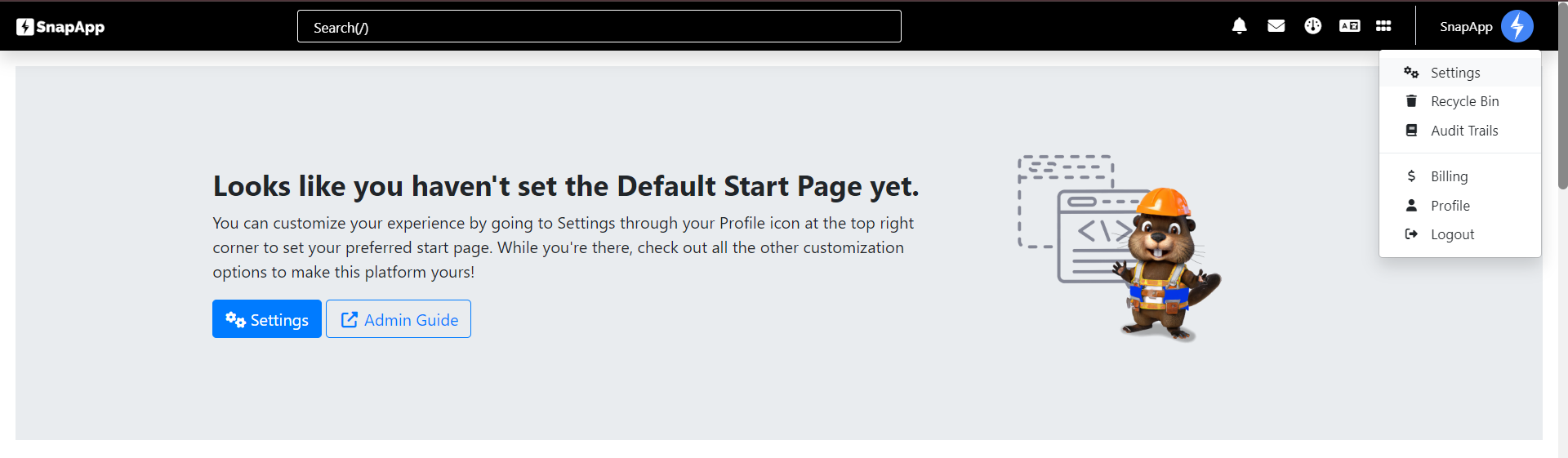
- Navigate to Settings from the User menu of the top bar.
-
Select Automation → Workflows.
-
Create a new workflow or select an existing one to modify.
Add a Send Email Action:
- Navigate to Actions and click the + sign.

- Within the Workflow Builder, add a new action.
Configure the Send Email Action:
- Name: Provide a descriptive name for the action (e.g., “Send Welcome Email”).
- Type: Select Email as the type.
- To Email: Specify the recipient email address(es). You can use static emails or dynamic fields (e.g.,
[[user_email]]). - Subject: Enter the subject line for the email.
- Body: Enter the content of the email. You can use HTML or plain text, and include dynamic fields. Or select an existing Email Template.
Save the Workflow:
- Adjust the Sequence if needed.
- Set the Status to Active or Inactive → Save.
Additional Considerations
- You can send emails to multiple recipients by separating addresses with commas.
- Ensure your SMTP or email integration settings are correctly configured in Global Settings to prevent delivery issues.
Example
Let’s say you want to send a notification to a manager when an “Order” status changes to “Pending Approval”.
- Name: Notify Manager of New Order
- Type: Send Email
- To Email: manager@example.com
- Subject: New Order Pending Approval - Order #[[order_id]]
- Body: Hello, A new order #[[order_id]] has been placed and requires your approval. Please log in to review.
Thank you for following these steps to manage your SnapApp workflow actions effectively. If you have any questions or need further assistance, please don’t hesitate to reach out to our support team. We’re here to help you make the most out of your SnapApp experience.
For support, email us at snapapp@bluevector.ai


