
Workflow Actions - Alert
on 01-27-2026 12:00 AM by SnapApp by BlueVector AI
864
The Alert workflow action facilitates immediate in-app notifications, ensuring users are promptly informed of critical updates, task assignments, or system events directly within the application interface.
Table of Contents
- Overview
- Prerequisites
- Steps
- Create a New Workflow or Edit an Existing One:
- Add an Alert Action:
- Configure the Alert Action:
- Save the Workflow:
- Additional Considerations
- Example
Overview
The Alert action triggers an in-app notification to specified users or roles. Unlike emails or SMS which go to external devices, Alerts are displayed within the SnapApp user interface (usually in a notification center or bell icon), making them ideal for high-priority operational updates that users should see while working in the app.
Prerequisites
You must have an already created workflow before creating an alert action.
Steps
Create a New Workflow or Edit an Existing One:
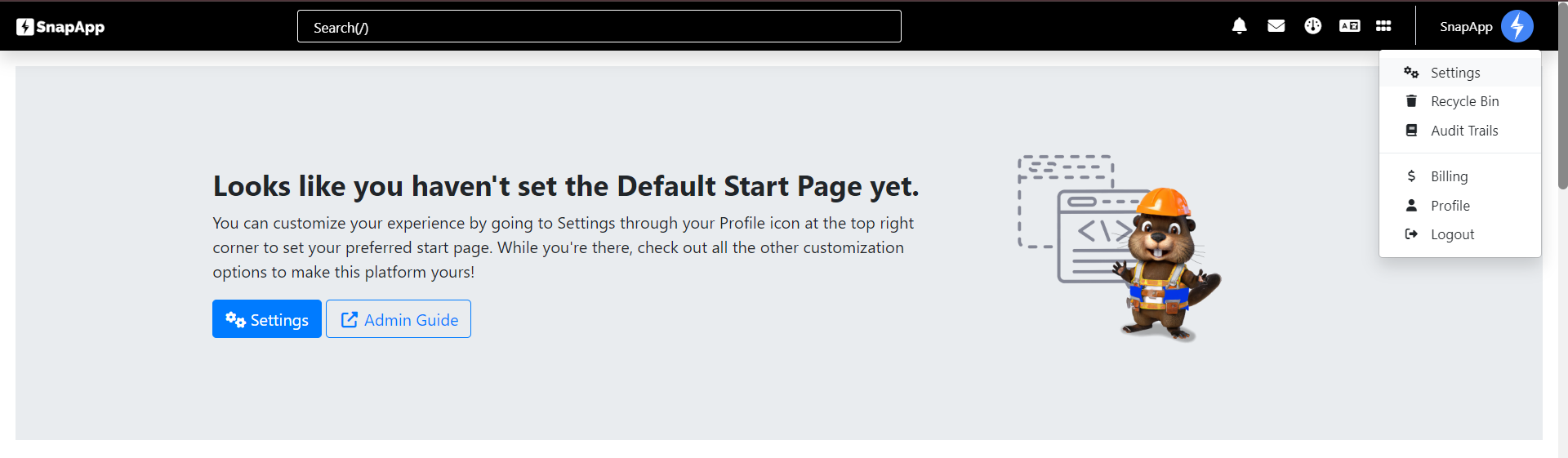
- Navigate to Settings from the User menu of the top bar.
-
Select Automation → Workflows.
-
Create a new workflow or select an existing one to modify.
Add an Alert Action:
- Navigate to Actions and click the + sign.

- Within the Workflow Builder, add a new action.
Configure the Alert Action:
- Name: Provide a descriptive name for the action (e.g., “Notify Assignee of New Task”).
- Type: Select Alert as the type.
- Message: Enter the content of the notification. You can use dynamic fields (e.g.,
[[record_name]]) to personalize the message. - Recipients: Specify who receives the alert. This can be:
- Specific Users: Select individual users.
- Roles: Send to all users with a specific role.
- Dynamic Fields: Send to the user specified in a field (e.g.,
[[assigned_to]]).
Save the Workflow:
- Adjust the Sequence in order to change the order of execution if needed.
- Set the Status to Active or Inactive → Save.
Additional Considerations
- Visibility: Alerts typically persist in the user’s notification list until read or dismissed.
- Link: You may be able to configure the alert to link directly to the record that triggered it, allowing the user to navigate immediately to the relevant data.
Example
Let’s say you want to notify a sales representative immediately when a high-value lead is assigned to them.
- Name: High Value Lead Alert
- Type: Alert
- Recipients:
[[assigned_to]] - Message: “New High Value Lead: [[lead_name]] has been assigned to you. Calculated Value: [[value]].”
Thank you for following these steps to manage your SnapApp workflow actions effectively. If you have any questions or need further assistance, please don’t hesitate to reach out to our support team. We’re here to help you make the most out of your SnapApp experience.
For support, email us at snapapp@bluevector.ai


