
Workflow Actions - Clone
on 01-27-2026 12:00 AM by SnapApp by BlueVector AI
645
The Clone workflow action allows you to duplicate a record, creating a copy with specified field values. This is useful for creating templates, recurring tasks, or duplicating complex data structures.
Table of Contents
- Overview
- Prerequisites
- Steps
- Create a New Workflow or Edit an Existing One:
- Add a Clone Action:
- Configure the Clone Action:
- Save the Workflow:
- Additional Considerations
- Example
Overview
The Clone action automates the duplication of records. When triggered, it creates a new record in the target object, copying values from the source record (the record that triggered the workflow).
Prerequisites
You must have an already created workflow before creating a clone action.
Steps
Create a New Workflow or Edit an Existing One:
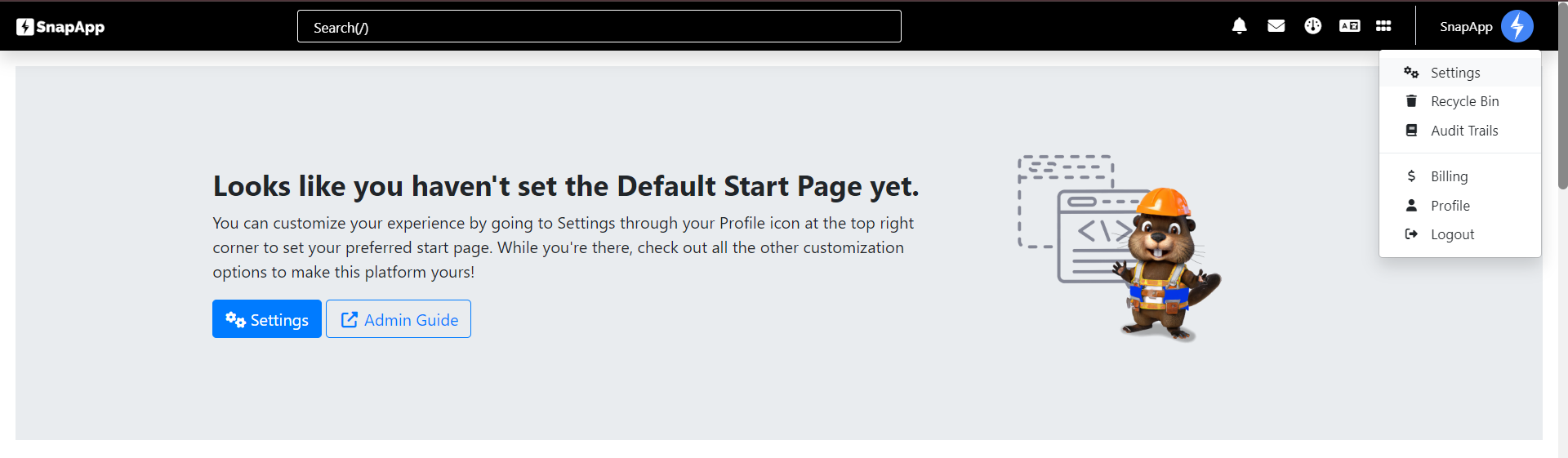
- Navigate to Settings from the User menu of the top bar.
-
Select Automation → Workflows.
-
Create a new workflow or select an existing one to modify.
Add a Clone Action:
- Navigate to Actions and click the + sign.

- Within the Workflow Builder, add a new action.
Configure the Clone Action:
- Name: Provide a descriptive name for the action (e.g., “Clone Project Template”).
- Type: Select Clone as the type.
- Object: The object type of the record you want to clone (e.g., Project). this MUST be the same object type as the workflow trigger.
[!NOTE] The action will clone the specific record that triggered the workflow. Ensure your workflow is triggered by the record you intend to duplicate.
Save the Workflow:
- Adjust the Sequence in order to change the order of execution if needed.
- Set the Status to Active or Inactive → Save.
Additional Considerations
- Related Records: Be aware of how related records (children) are handled. Some system configurations may clone children, while others only clone the parent record.
Example
Let’s say you want to create a recurring task by cloning the current task when it is marked “Completed”.
- Name: Recurring Task Clone
- Type: Clone
- Object: Task
Thank you for following these steps to manage your SnapApp workflow actions effectively. If you have any questions or need further assistance, please don’t hesitate to reach out to our support team. We’re here to help you make the most out of your SnapApp experience.
For support, email us at snapapp@bluevector.ai


