
Workflow Actions - Custom Function
on 01-27-2026 12:00 AM by SnapApp by BlueVector AI
707
The Custom Function workflow action empowers you to execute specialized server-side logic that extends beyond standard platform capabilities. This is ideal for complex calculations, advanced data manipulations, or interactions that require custom scripting.
Table of Contents
- Overview
- Prerequisites
- Steps
- Create a New Workflow or Edit an Existing One:
- Add a Custom Function Action:
- Configure the Custom Function Action:
- Save the Workflow:
- Additional Considerations
- Example
Overview
The Custom Function action triggers a pre-defined script or function within your SnapApp environment. This allows for virtually unlimited flexibility in handling data and process flows, enabling you to implement specific business rules that are unique to your organization.
Prerequisites
- You must have an already created workflow before creating a custom function action.
- The Custom Function itself must be registered and available in the system. Learn how to create a custom function here.
Steps
Create a New Workflow or Edit an Existing One:
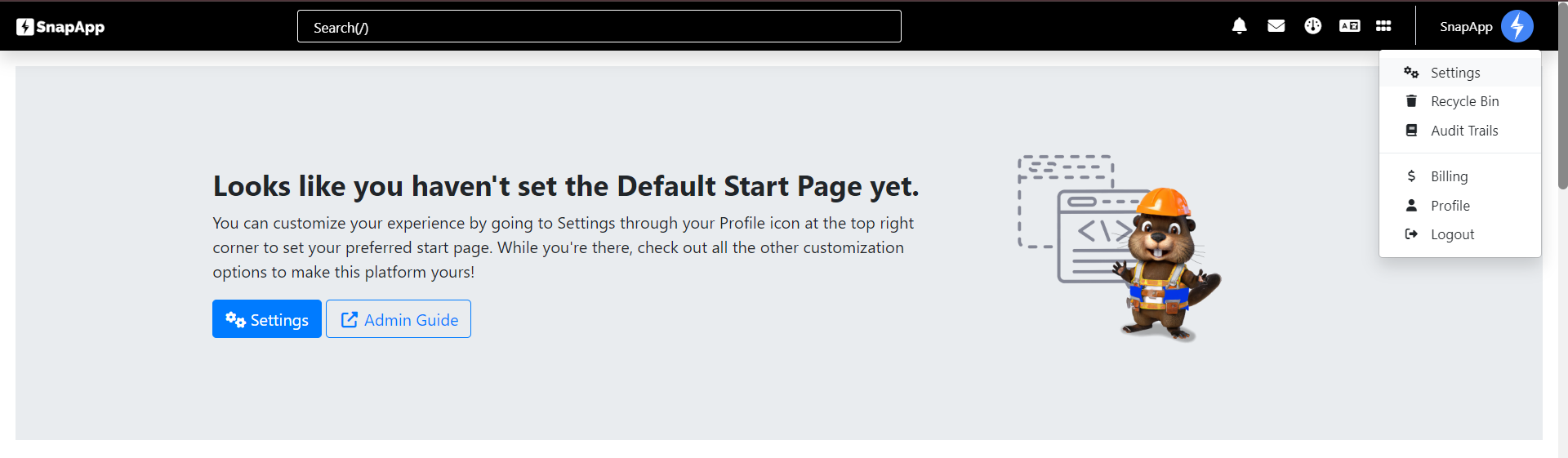
- Navigate to Settings from the User menu of the top bar.
-
Select Automation → Workflows.
-
Create a new workflow or select an existing one to modify.
Add a Custom Function Action:
- Navigate to Actions and click the + sign.

- Within the Workflow Builder, add a new action.
Configure the Custom Function Action:
- Name: Provide a descriptive name for the action (e.g., “Calculate Lead Score”).
- Type: Select Custom Function as the type.
- SnapApp Function: Select the specific custom function you wish to execute from the dropdown list.
- Arguments: (Optional) specific arguments or data to pass to the function. This is often configured as workflow data to function arguments.
[!NOTE] Ensure that the data passed in the arguments matches the expected input format of your custom function.
- Workflow ID: Adjust the workflow ID if needed to connect to a specific Workflow.
- Object: Select the object to connect to the custom function.
Save the Workflow:
- Adjust the Sequence in order to change the order of execution if needed.
- Set the Status to Active or Inactive → Save.
Additional Considerations
- Execution Time: Custom functions may take longer to execute than standard actions. Consider this when designing time-sensitive workflows.
- Error Handling: Typical custom functions should have internal error handling, but ensure your workflow considers what happens if the function fails (e.g., using a subsequent condition to check for success).
Example
Let’s say you have a custom script that calculates a complex commission rate based on multiple tiered factors.
- Name: Calculate Commission
- Type: Custom Function
- SnapApp Function:
COMMISSION_CALCULATION_C2 - Arguments: [[amount]], [[ownerId]], [[region]]
- Workflow ID: Calculate_Commission
- Object: Owner
Thank you for following these steps to manage your SnapApp workflow actions effectively. If you have any questions or need further assistance, please don’t hesitate to reach out to our support team. We’re here to help you make the most out of your SnapApp experience.
For support, email us at snapapp@bluevector.ai


