
Access Controls (Roles and Permissions)
on 01-20-2026 12:00 AM by SnapApp by BlueVector AI
887
.png)
Table of Contents
- Roles and Permission Sets
- Core Concepts
- System Role Definitions
- Permission Sets
- Creating Custom Roles & Permission Sets
- Best Practices
Roles and Permission Sets
SnapApp utilizes Role-Based Access Control (RBAC) to manage access levels across your organization. By grouping granular permissions into Roles, you can ensure that team members have exactly the access they need to build, manage, or view applications without compromising security.

Core Concepts
Understanding the SnapApp hierarchy is essential for effective governance:
- Permissions: The most granular level of access (read, write, create, update).
- Roles: A named collection of permissions (e.g., “Developer”).
- Users: Individual team members who are assigned a Role.
- Environment Scoping: Permissions can be restricted to specific environments (e.g.,
Stagingvs.Production).
System Role Definitions
To streamline your development workflow, SnapApp provides a suite of Pre-defined System Roles. These roles come with optimized permission sets, allowing you to manage user access instantly without manual configuration.
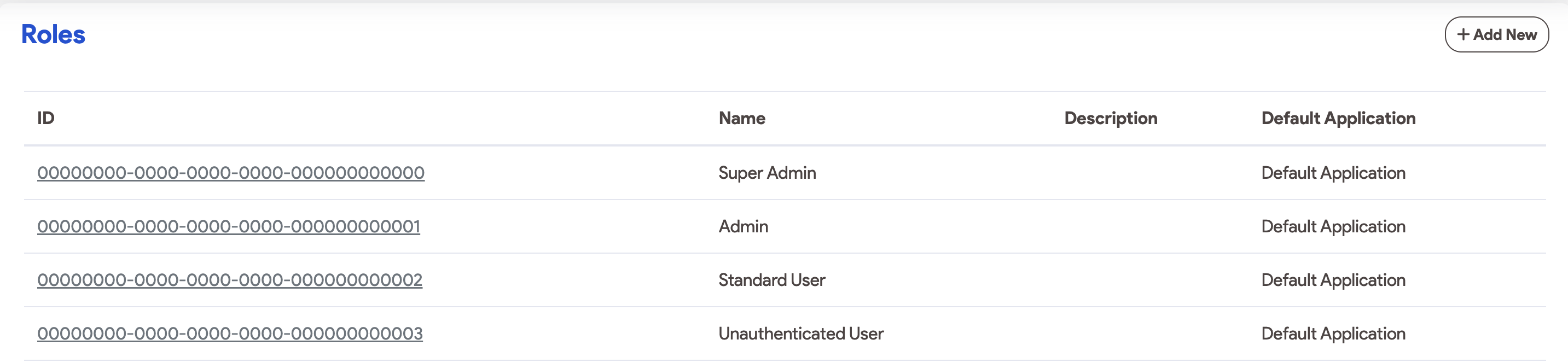
| Role Name | Description |
|---|---|
| Admin | Application Management. High-level app configuration access with restricted security privileges. |
| Standard User | End User. Access to use and interact with built applications as a consumer. |
| Unauthenticated | Public Access. Minimum permissions required for public-facing assets. |
Permission Sets
Permission sets are the technical capabilities and read, write, create, delete permissions per object and field granted to roles.
System Permission Sets Definitions
Elevated Admin Access
- Assigned to: Super Admin
- Capabilities: * Create, update, and delete Roles and Permission Sets.
- Invite/Remove users and manage global Organization settings.
- Full access to Audit Logs and security configurations.
Admin Access
- Assigned to: Admin and Super Admin
- Capabilities: * Full application configuration and resource management.
- Restriction: Cannot modify Roles or Permission Sets.
- Restriction: Limited access to global organization-level security settings.
Basic User Access
- Assigned to: Standard User, Admin, and Super Admin
- Capabilities: * Execute and interact with published applications.
- View data and submit forms as defined by the application logic.
- No access to the SnapApp Builder or configuration panels.
Unauthenticated Access
- Assigned to: Unauthenticated User
- Capabilities: Access to specific “Public” marked applications or login screens only.
Permission Matrix
| Feature | Super Admin | Admin | Standard User |
|---|---|---|---|
| Manage Roles/Permissions | ✅ | ❌ | ❌ |
| Manage Users | ✅ | ⚠️ (View Only) | ❌ |
| App Configuration | ✅ | ✅ | ❌ |
| Use/Execute Apps | ✅ | ✅ | ✅ |
| Resource Connections | ❌ | ✅ | ❌ |
Creating Custom Roles & Permission Sets
When the default roles do not fit your specific organizational structure, Super Admins can create custom definitions. Click here, for more information on how to configure roles and permission sets.
Step 1: Define a Custom Permission Set
A Permission Set is a collection of specific “can-do” actions.
- Navigate to Access Control > Roles and Permissions.
- Click + Add New on the Roles section header.
- Select specific object and fields to set their permissions (read, update, create, delete, clone).
- Set the Scope: Define if this set applies to all applications or only those with specific tags (e.g., “Marketing”).
Step 2: Create a Custom Role
A Role is the functional title you assign to a user. It acts as a container for one or more Permission Sets.
- Navigate to Access Control > Roles and Permissions.
- Click + Add New on the Permission Sets section header.
- Assign Permission Sets: Select the sets created in Step 1.
- Inheritance: You can optionally inherit from the Standard User role to ensure the user has basic login and dashboard access.
| Permission | Description |
|---|---|
| Read | Select this checkbox for all applications the role’s permission set should access. |
| Create | Grants the ability to create records for the object. |
| Read | Grants the ability to view all object data and related views. |
| Update | Grants the ability to modify existing object records. |
| Delete | Grants the ability to delete object data. |
| Read with No Access | A special case where read permissions are needed for dropdown/related lists without access to other object views. |
| Clone | Grants the ability to copy object data. |
- For more specific field permissions, adjust the permissions in the Fields list view. The Read and Update columns offer the same permissions as described above.
- Remember to always apply the principle of the least privilege, giving only the necessary permissions to roles and users.
Best Practices
- The Two-Admin Rule: We recommend having at least two Super Admins to prevent platform lockout, but no more than five to maintain a tight security perimeter.
- Separation of Concerns: Use the Admin role for your developers and builders. This allows them to configure the app and data sources without giving them the power to alter the organization’s security posture.
- End-User Onboarding: Assign the Standard User role by default to all new invites to ensure they can only consume the apps you have built for them.
- Principle of Least Privilege: Assign users the most restrictive permissions needed to accomplish their task or goal. If needed, further permissions can be added later.
Thank you for following these steps to manage your SnapApp access controls (roles and permissions) settings effectively. If you have any questions or need further assistance, please don’t hesitate to reach out to our support team. We’re here to help you make the most out of your SnapApp experience.
For support, email us at snapapp@bluevector.ai


