
SnapApp Field Types - Ref
on 01-16-2026 12:00 AM by SnapApp by BlueVector AI
420
Ref Field
The Ref (Reference) field type is the foundation of relational data within SnapApp. It allows you to link a record in one object to a record in another, creating a “lookup” relationship. This is essential for connecting data like “Projects” to “Clients” or “Tasks” to “Employees.”
Ref Field Properties
Note: Every field in SnapApp shares a set of universal properties, such as Display and Edit settings, that are configured during creation.
To find more information on these foundational settings, please click the link below: SnapApp Fields Fundamentals
Basic Properties
The Basic Properties tab establishes the link between the current object and the target object.
| Property | Description |
|---|---|
| Data Type | Set to Ref. This enables the relational lookup functionality. |
| Object | The parent object where this reference field is being created. |
| Ref Object | The target object that this field will reference (pull data from). |
| Label | The user-facing name, such as “Assigned Manager” or “Related Account”. |
| Column Name | Prepopulated from the Label (e.g., assigned_manager_ref). |
| Description | Internal notes explaining the purpose of this relationship. |
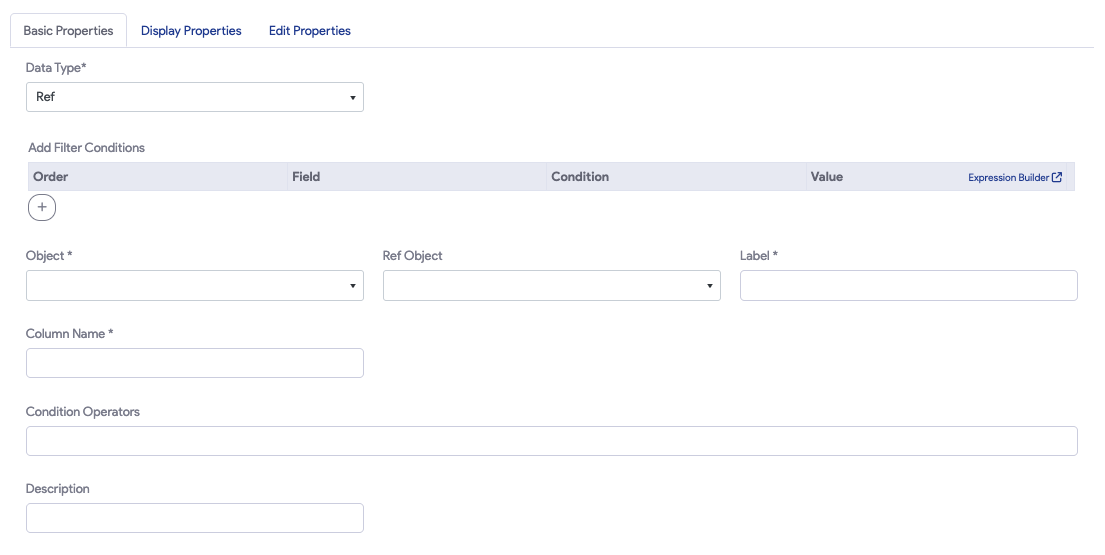
Filter Conditions
This section allows you to restrict which records from the Ref Object are available for selection in the lookup menu. By defining these rules, you ensure that users only see data that is relevant to the current context.
- Order: Assigns a numerical sequence to each filter rule, which is used to define the logic in the Condition Operator.
- Field: Select the specific field from the referenced object to evaluate (e.g.,
StatusorDepartment). - Condition: Choose the logical operator, such as “=,” “>=,” or “<=”.
- Value: Enter a static value (e.g.,
Approved) or a dynamic formula (e.g.,=USERID()). - Expression Builder: Click this link to open a advanced editor for writing complex logical expressions that dynamically filter the list based on current record data.

Condition Operators & Logical Execution
Found directly below the column name, the Condition Operators field sets the order of execution for your filter rules. This is critical when using multiple filters to define how they interact (e.g., AND vs OR logic).
Example: Filtering Permit Applications
To help, consider a scenario where you only want to show valid permit applications created by the current user:
| Order | Field | Condition | Value |
|---|---|---|---|
| 1 | created_by |
= |
=USERID() |
| 2 | status |
= |
Approved |
| 3 | permit_expiration_date |
>= |
=TODAY() |
Condition Operators (Logical Execution): To ensure the list only shows records that meet all these requirements, you would enter:
((1 AND 2) AND 3)
Result: The lookup will only display applications that were created by the logged-in user, have an “Approved” status, AND have not yet expired.

Data Type Properties
These specialized settings define how the referenced data appears and behaves within the app.
| Property | Description |
|---|---|
| Ref Image | A dropdown to select which image field from the referenced record should show as a thumbnail. |
| Ref Label | A dropdown to select which field from the referenced record serves as the primary display name. |
| Cardinality | Defines the relationship type: One-to-One or Many-to-One. Many-to-One: Many “Tasks” can be linked to one “Project Manager.” |
| Show Hover View | A checkbox that enables a small pop-up window when a user hovers over the reference. |
| Hover View | A dropdown to select which View (e.g., “Contact Detail”) appears in the hover pop-up. |
| Ref Type | Standard lookup or Parent (defines a child/parent relationship). Parent: An Invoice Line Item that cannot exist without its “Invoice.” . |
| Related Records Label | Defines the heading used for child records when viewed from the parent record (usually the plural name of the current object). In a Project record, set this to "Project Tasks" so the list of linked tasks is clearly labeled for the user. |
| On Delete | Determines what happens if the referenced record is deleted. Options include CASCADE, SET NULL, or NO ACTION. CASCADE: If the main record is deleted, all linked records are automatically deleted too. Best for: Items that only exist as part of a whole. For example, if an Invoice is deleted, all Invoice Line Items should also be removed. SET NULL: If the main record is deleted, the link is simply cleared out (left blank), but the record itself stays exactly where it is. Best for: Optional connections. For example, if a Project Manager is deleted, the Project remains, but the “Manager” field becomes empty. NO ACTION: The system will block the deletion of the main record as long as other records are still linked to it. Best for: Safety. This acts as a “lock” to make sure a Client isn’t deleted accidentally while they still have active Invoices linked. |

Thank you for following these steps to configure your SnapApp components. Building a well-structured data environment is the first step toward creating a powerful, automated application that scales with your needs.
For further assistance with complex relationship filtering, email us at snapapp@bluevector.ai


