
SnapApp Field Types - JSON
on 01-16-2026 12:00 AM by SnapApp by BlueVector AI
521
JSON Field
The JSON (JavaScript Object Notation) field type is a powerful data storage component designed for developers and power users. It allows for the storage of structured, hierarchical data within a single field. This is particularly useful for storing complex configuration settings, API response payloads, or dynamic metadata that does not fit into a standard flat field structure.
JSON Field Properties
Note: Every field in SnapApp shares a set of universal properties, such as Display and Edit settings, that are configured during creation.
To find more information on these foundational settings, please click the link below: SnapApp Fields Fundamentals
Basic Properties
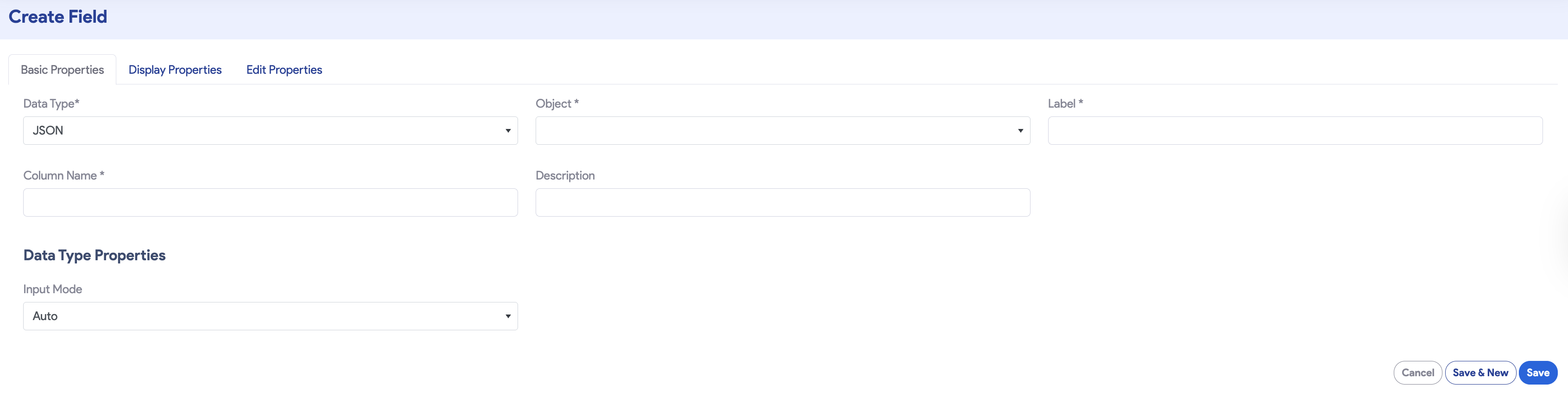
The Basic Properties tab establishes the field’s identity and its relationship to the parent object.
| Property | Description |
|---|---|
| Data Type | Set to JSON. This enables the structured data storage engine. |
| Object | The parent object this field belongs to. |
| Label | The user-facing name, such as “Configuration Data” or “Metadata Block”. |
| Column Name | Prepopulated from the Label (e.g., system_config_json). |
| Description | Internal notes explaining the schema or expected key-value pairs for this JSON block. |
Data Type Properties
When the JSON data type is selected, the following specialized configuration becomes available in the Data Type Properties section to control the user’s entry experience:
- Input Mode: A dropdown menu that determines the type of interface used for data entry:
- Auto: The system automatically selects the best interface based on the length and complexity of the data.
- Text: Provides a standard text box. Editor: Enables a high-performance code editor interface.
Input Interface Options
Depending on your Input Mode selection, the field will render differently in your application forms:
1. Text Mode
This mode provides a clean, standard text area. It is ideal for small, simple JSON objects.

2. Editor Mode
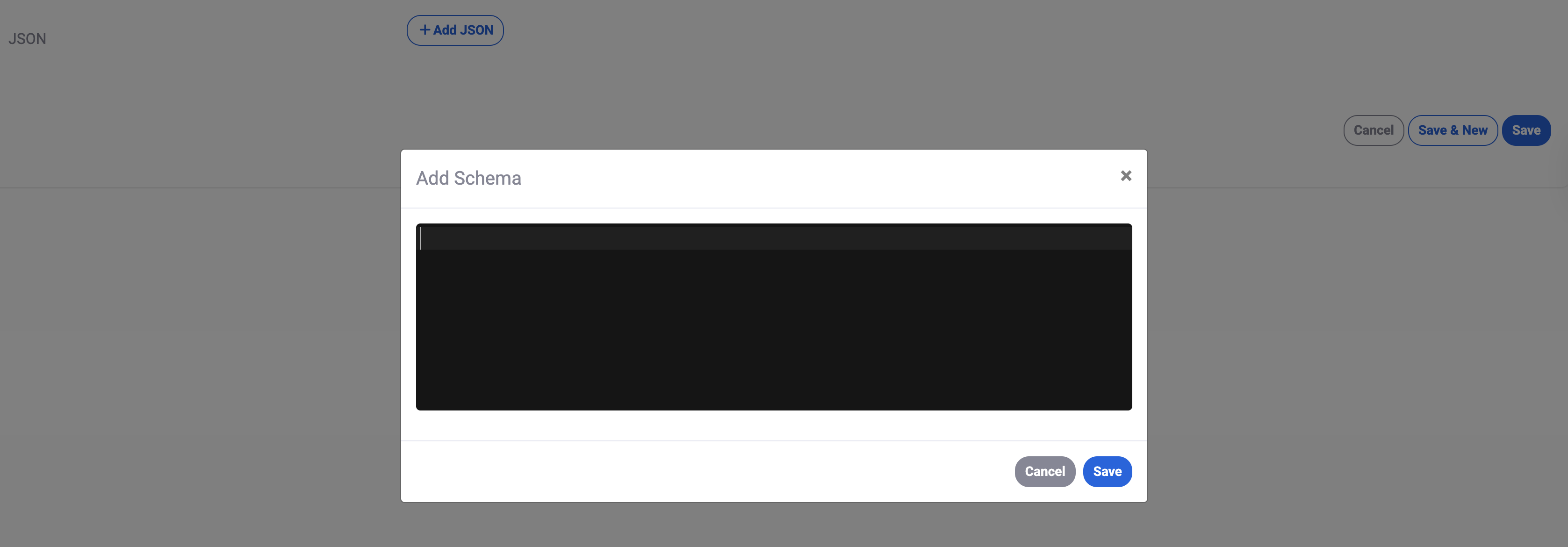
This mode presents an + Add JSON action button. Clicking this button opens a Add Schema popup modal.
Editor Modal Features:
- Validation: Built-in syntax validation to prevent “broken” or malformed JSON from being saved.
- Dedicated Workspace: Provides a focused, dark-themed environment for clean code entry.
Thank you for following these steps to configure your SnapApp components. Building a well-structured data environment is the first step toward creating a powerful, automated application that scales with your needs.
For support on JSON schema validation or API integrations, email us at snapapp@bluevector.ai


