
SnapApp Field Types - File
on 01-16-2026 12:00 AM by SnapApp by BlueVector AI
425
File Field
The File field type allows users to upload, store, and manage documents and media within the cloud storage associated with your application. It provides a secure way to attach external documentation, such as PDFs, spreadsheets, or technical files—directly to a specific record.
File Field Properties
Note: Every field in SnapApp shares a set of universal properties, such as Display and Edit settings, that are configured during creation.
To find more information on these foundational settings, please click the link below: SnapApp Fields Fundamentals
Basic Properties
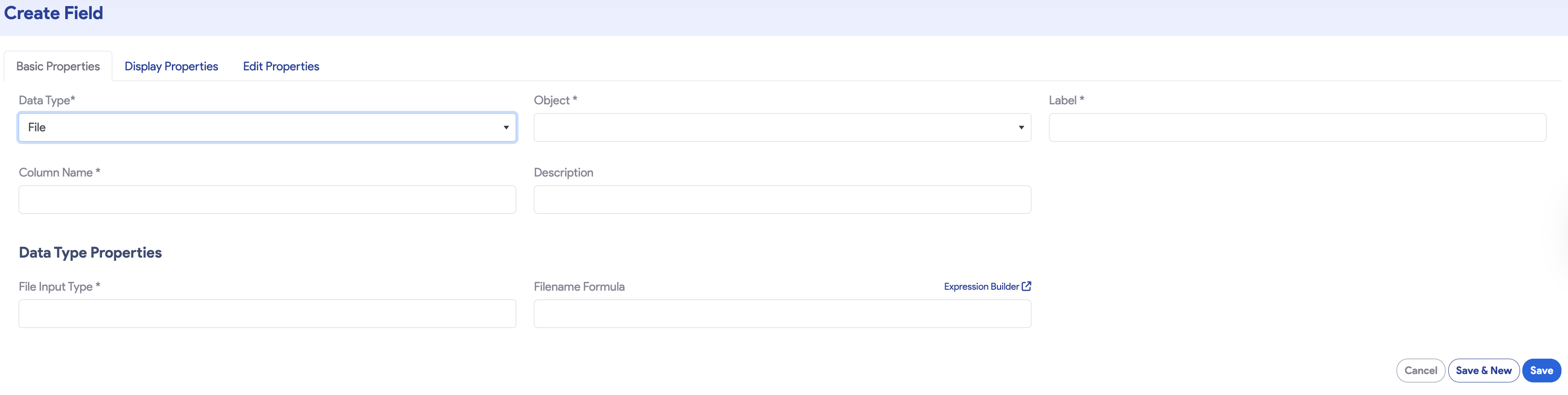
The Basic Properties tab establishes the field’s identity and its relationship to the parent object.
| Property | Description |
|---|---|
| Data Type | Set to File. This enables the file upload and storage engine. |
| Object | The parent object this field belongs to. |
| Label | The user-facing name, such as “Contract Upload” or “Technical Specs”. |
| Column Name | Prepopulated from the Label (e.g., signed_contract_file). |
| Description | Internal notes explaining the required file types or storage policies. |
Data Type Properties
When the File data type is selected, specific configuration options appear to control file handling:
- File Input Type: Restricts the specific formats users are allowed to upload. Supported extensions include:
- Data/Code:
avro,css,csv,json,xml,sql,js. - Documents:
doc,docx,pdf. - Images:
gif,jpeg,jpg,png,svg,tiff,webp. - All File Types: Removes all format restrictions.
- Filename Formula: Uses the Expression Builder to automatically rename the uploaded file. For example,
CONCAT([[customer_name]], "_", TODAY())ensures all uploads follow a standardized naming convention.
Display Properties
These settings control how the upload interface appears and how the file interacts with the user interface.
General Display Settings
| Property | Description |
|---|---|
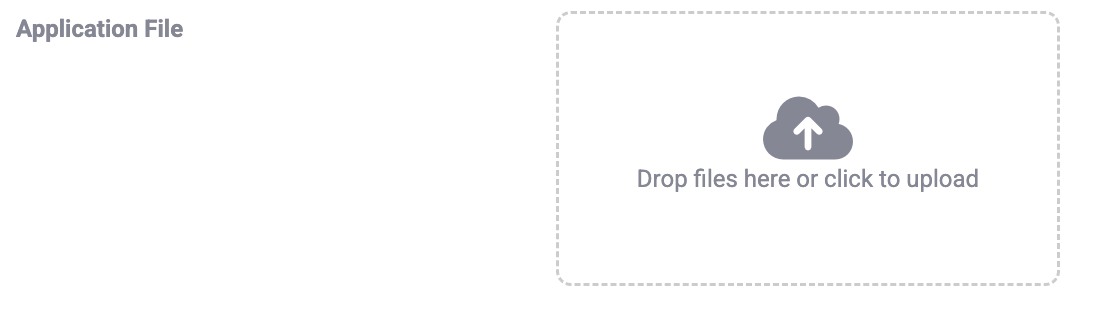
| Input Display | Determines the layout and style of the upload zone. Options include Drag and Drop or a standard File Button, with alignment options for Left or Right. |
Interface Examples
Drag and Drop - Left
The upload zone occupies the left side of the field container, providing a large target for users to drop files.

Drag and Drop - Right
The upload zone is positioned on the right side of the field container, providing a large target for users to drop files.
File Button
Provides a traditional input bar with a “Browse” button. This is ideal for clean, compact forms where a large drop zone isn’t necessary.

Thank you for following these steps to configure your SnapApp components. Building a well-structured data environment is the first step toward creating a powerful, automated application that scales with your needs.
For further assistance , email us at snapapp@bluevector.ai


