
Data Sources: Object Storage (Google Cloud Storage)
on 01-26-2026 12:00 AM by SnapApp by BlueVector AI
708
Data Sources: Google Cloud Storage (GCS)
Google Cloud Storage (GCS) serves as a robust object storage solution within SnapApp, allowing you to store and manage unstructured data such as images, PDFs, and large data files. By connecting a GCS bucket to your application, you can leverage it as a secure repository or as a source for AI-powered features.
Table of Contents
- Navigate to Data Sources
- Connection Configuration
- Required Fields:
- Testing the Connection:
- Enable Grounding
- What it does:
- Best Practices
- Support
Navigate to Data Sources
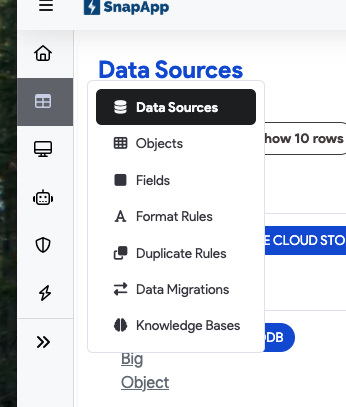
To navigate to data source to add your data connection, click the profile icon in the top right corner and select settings from the dropdown menu. Then do to Data > Data Sources.
Connection Configuration
Setting up a GCS data source requires linking a specific bucket to SnapApp using a secure service account key.
Required Fields:
- Type: Select Google Cloud Storage from the dropdown menu.
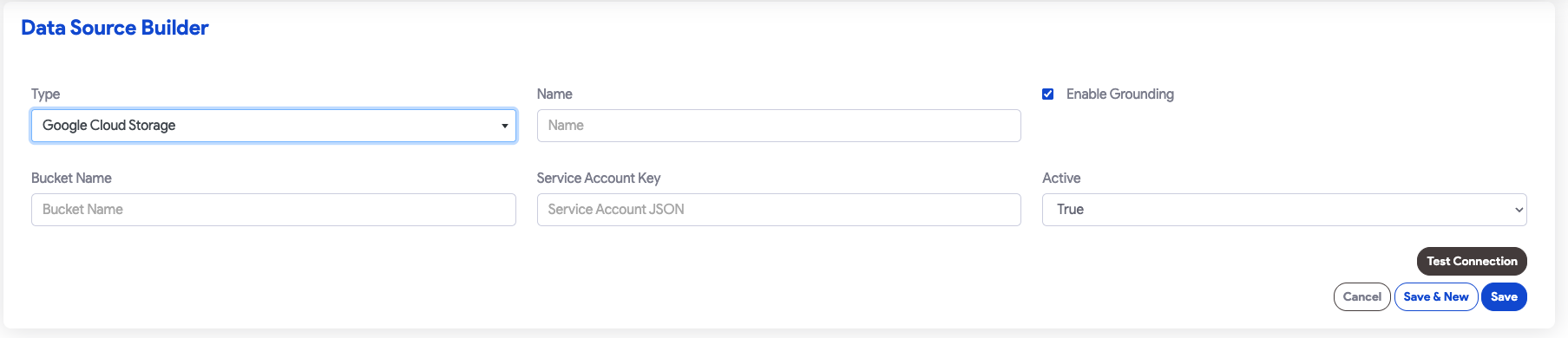
- Name: Provide a unique, internal label for this data source (e.g., “Marketing_Assets_Bucket”).
- Bucket Name: The exact name of your GCS bucket as it appears in the Google Cloud Console.
- Service Account Key: The full contents of your Google Cloud Service Account JSON key file.
- Ensure the service account has at least Storage Object Viewer or Storage Object Creator roles depending on your use case.
- Active: A toggle to enable or disable the connection without deleting the configuration.
Testing the Connection:
Before saving, always use the Test Connection button. This ensures that SnapApp can successfully authenticate with Google Cloud using the provided service account key and reach the specified bucket.
Enable Grounding
The Enable Grounding checkbox is a powerful feature that integrates your GCS data with SnapApp’s AI capabilities.
What it does:
- Contextual AI Responses: By enabling grounding, you allow SnapApp’s AI models to use the documents and data stored in your GCS bucket as a primary reference.
- Reducing Hallucinations: Grounding “tethers” the AI’s output to your actual files, significantly reducing the risk of the model inventing incorrect information.
- Enterprise Truth: It transforms your static cloud storage into a searchable knowledge base that the AI can cite to provide factual, evidence-based answers to user queries.
Best Practices
- Bucket Naming: Ensure your bucket name follows GCS naming conventions (unique across Google Cloud, no sensitive information in the name).
- Key Security: Handle your Service Account JSON key as sensitive data. Never share it publicly; it grants direct access to your storage resources.
- Role Limitation: Use a dedicated service account for SnapApp and grant it only the specific permissions it needs for the targeted bucket (Principle of Least Privilege).
Support
If you have any questions or need further assistance, please reach out to our support team.
Email: snapapp@bluevector.ai


