
Duplicate Rules
on 01-23-2026 12:00 AM by SnapApp by BlueVector AI
594
Duplicate Rules
Duplicate rules in SnapApp enforce data integrity by identifying and preventing the creation of redundant records. By maintaining a clean database, your application ensures accuracy in reporting and efficiency in storage management.
Table of Contents
- Overview
- Key Logic Workflow
- Core Components
- Configuration Guide
- 1. Accessing Data Settings
- 2. Rule Details & Logic
- 3. Specifying Actions on Detection
- 4. Defining Matching Criteria
- Managing Duplicates: Review & Merge
- The Merge Process
- Best Practices
Overview
A Duplicate Rule is a configurable security and data integrity feature designed to monitor records at the object level. When a user creates or edits a record, SnapApp evaluates the data against your defined criteria to determine if a match already exists in that object.
Key Logic Workflow
- Ensures Data Integrity: Prevents “dirty data” from entering the system.
- Efficiency: Reduces time spent by administrators manually cleaning redundant entries.
- Customization: Supports both Exact and Fuzzy matching logic to account for human error.
Core Components
| Component | Description |
|---|---|
| Matching Criteria | The specific fields (Email, Phone, Address) used to compare records. |
| Actions | What the system does when a duplicate is found (Block or Allow). |
| Security Level | Determines if the rule scans all records or only those visible to the user. |
| Merge Tool | An interface to consolidate duplicate records into one “Master” record. |
Configuration Guide
Follow these steps to create a new Duplicate Rule within the SnapApp Builder.
1. Accessing Data Settings
- Navigate to your User Profile in the top right corner.
- Select Settings from the dropdown menu.
- In the left-hand navigation bar, click the Data tab.
- Choose Duplicate Rules from the dropdown grouping.
- Click the + Add New button in the top right corner.

2. Rule Details & Logic
- Name: Enter a descriptive name (e.g.,
Prevent Same User Duplicate Reports). - Object ID: Select the object this rule applies to (e.g.,
service_requests). - Record Security Level:
- Bypass Sharing Rules: Checks across all records, regardless of ownership. (Recommended for global uniqueness).
- Enforce Sharing Rules: Only checks records the current user has permission to see.
- Active Checkbox: Must be checked for the rule to run.

3. Specifying Actions on Detection
Define the system behavior when a user attempts to save a record that matches your criteria.
- Action on Create/Edit:
- Block: Prevents the record from being saved.
- Allow: Saves the record but triggers an alert or log.
- Message Text: The custom notification shown to the user.
- Example: “You have already submitted a request of this type today. Please check the status of your existing request.”
- On Create/Edit Log: Select Yes to record the detection in the system logs for administrative audit.
4. Defining Matching Criteria
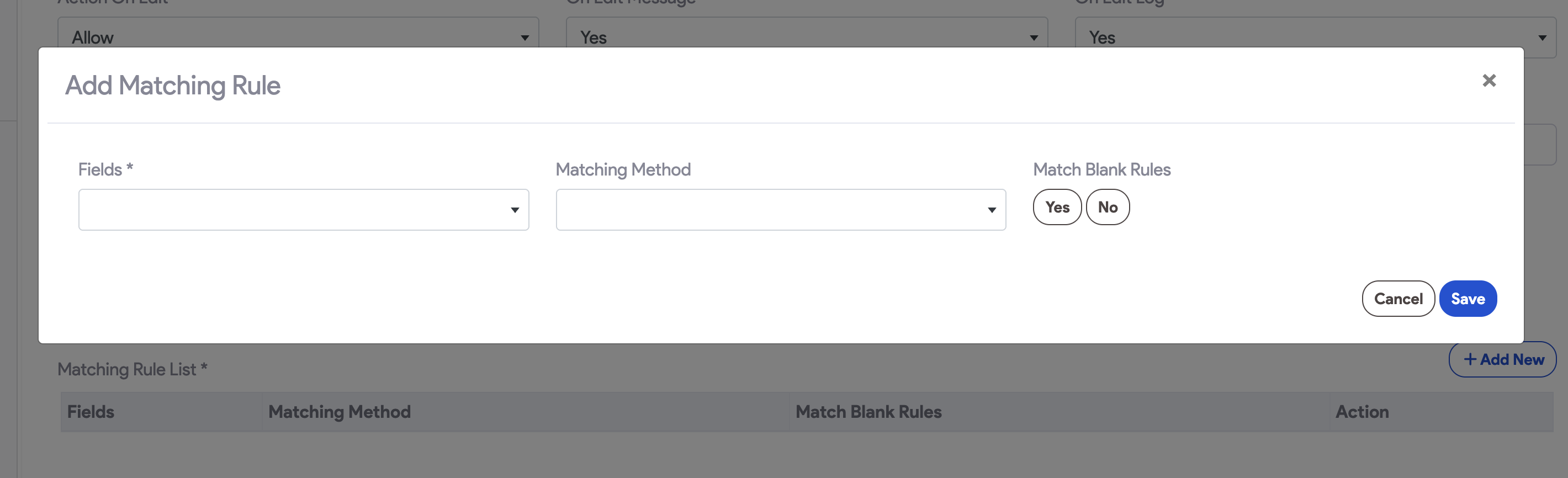
Matching rules define the “fingerprint” of a duplicate. You can stack multiple fields. To add a matching rule, click Add New on the Matching Criteria list.
- Field Selection: Choose the data point to compare (e.g.,
citizen_name,location). - Exact Match: Characters must match perfectly. Best for IDs, Emails, or Dates.
- Fuzzy Match: Accounts for variations (e.g., “Main St” vs “Main Street”). Best for addresses and names.
- Match Blank Rules: If set to No, the system will not consider two empty fields as a match.
Managing Duplicates: Review & Merge
When rules are set to “Allow,” or if legacy data contains duplicates, administrators must use the Merge Tool.
The Merge Process
- Access: Open the User Menu (top right) and click Duplicate Records.
- Selection: Locate the potential matches and click the Merge button.
- Field Selection: The system displays records side-by-side. For each field, select the value you wish to retain in the “Master” record.
- Consolidation: Click Merge. The system combines the data into one record and eliminates the duplicates.


Best Practices
Note: Begin with high-confidence fields like Email or National ID using Exact Match.
- Test Thoroughly: Before setting a rule to Block, use Allow with Log enabled to see how many legitimate records would have been stopped.
- Use Descriptive Names: Ensure other administrators understand the purpose of the rule at a glance.
- Bypass Sharing: Usually, duplicate rules should bypass sharing rules to ensure a “Single Source of Truth” across the entire organization.
For support, email us at snapapp@bluevector.ai


